Connect Strava to N+One: Step by step
5 min read
Connect Strava to N+One with a clear setup flow: open settings, choose Strava, authorize access, verify your first ride, and fix common sync issues.
On this page
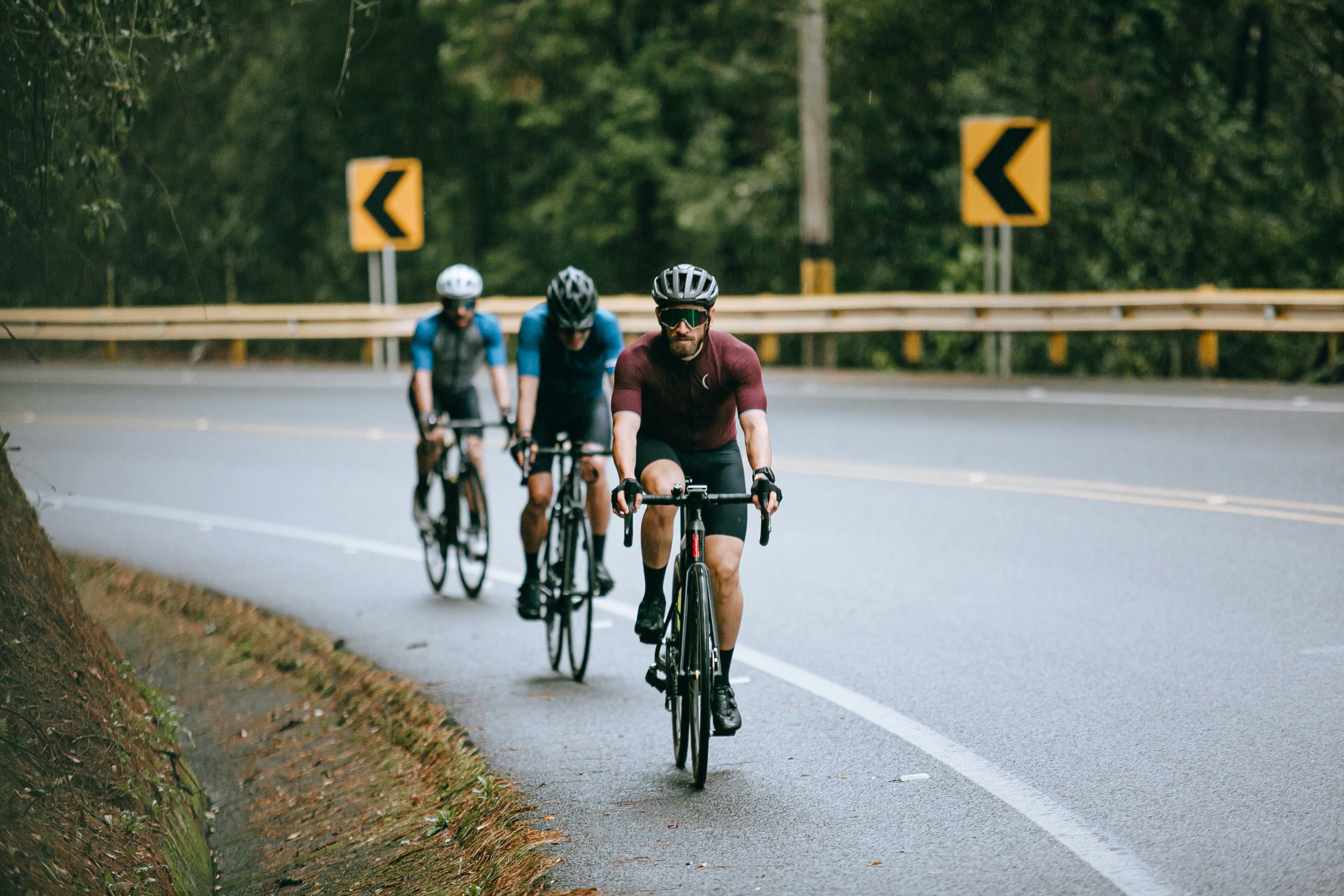
Photo by Munbaik Cycling Clothing on Unsplash.
Open N+One, go to Settings → Connections, choose Strava, then authorize access so your recent rides can sync.
The provided sources do not include an official N+One support page for this connector. The steps below follow the common OAuth-style flow used by many app integrations: sign in, grant access, return to the first app, and verify the first import.
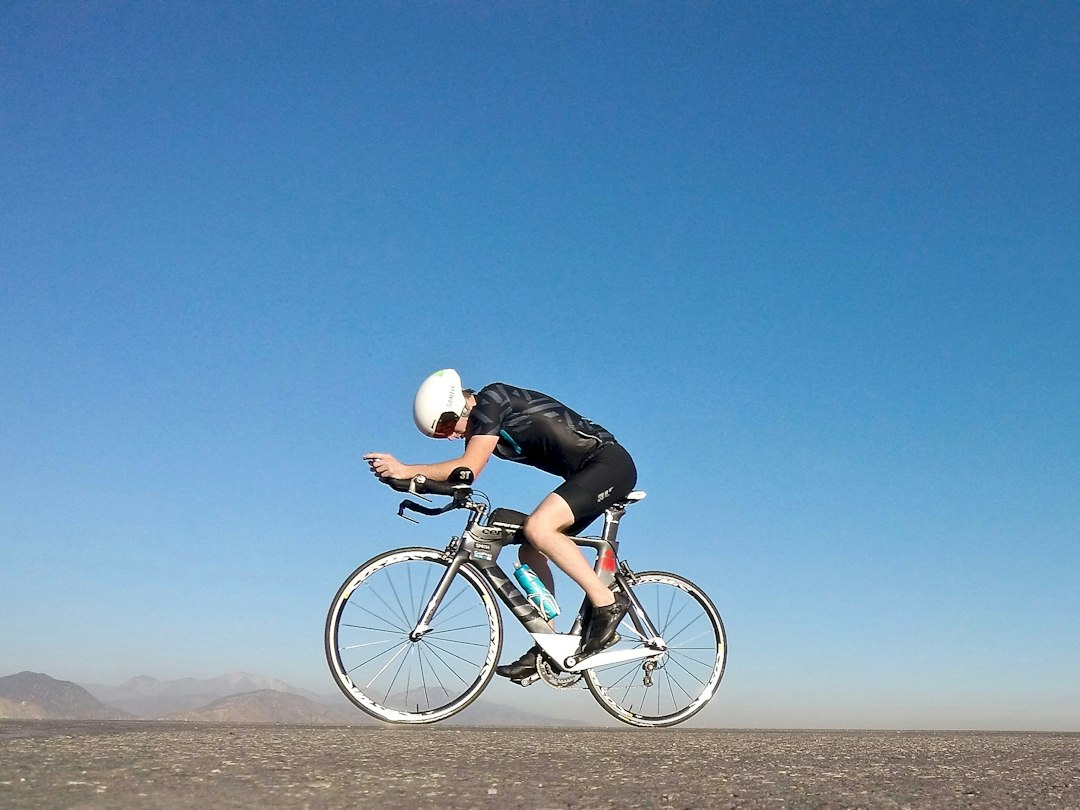
Photo by Beau Runsten on Unsplash.
Connecting Strava helps N+One see your recent rides without a manual file upload after each session. That gives the Dynamic Coach fresher context when it weighs your training day.
Ride files can carry useful fields such as route, distance, power, and time, if your device records them. If you also use other data paths, compare this setup with Garmin Edge auto-sync or iPhone Health workout data.
The aim is simple: connect once, then let your training system stay up to date. For a broader view of supported sources, use the N+One integrations guide.
Automatic ride imports so your coach sees recent sessions
Keeps power and GPS fields available when Strava has them
Cuts manual uploads and reduces sync lag
In N+One terms: connect once, let the system translate your rides into timely coaching inputs.
Connect Strava once, then let each ride become a timely coaching input instead of another task.
Before you start, make sure the Strava account you choose is the one that receives your ride uploads. If your bike computer sends rides to a different account, N+One will not see the right history.
On mobile, sign in to both apps before you begin the link flow. On web, keep N+One open in one tab and know the Strava login you want to use.
If power matters for your training, check that your head unit or watch sends that field to Strava. Riders setting up sensors can use pairing a power meter before they judge a missing data field.
Use the Strava account that receives your ride uploads
Sign in to N+One before starting the connector flow
Install both apps if you are setting this up on mobile
Check that Strava shows the ride fields you want imported
Data analysis is free, forever. The Dynamic Coach is Pro. Connected to Garmin, Strava, Whoop, and intervals.icu.
One tactical email with training ideas and product updates. No spam — unsubscribe anytime.
The single decisive next move: in N+One go to Settings → Connections (or Apps) → select Strava and follow the authorize flow.
Open the N+One app or web dashboard, then go to Settings and look for Connections, Connected Apps, or Data Integrations. Choose Strava and start the connect flow.
When Strava opens, sign in with the athlete account you want to link. Grant N+One permission to read activity and profile data, then return to N+One when the browser or app sends you back.
Confirm the connection inside N+One, then start a manual sync if the button is shown. If you also push sessions through indoor platforms, keep the flow distinct from Zwift workout file imports or smart trainer links.
Open N+One → Settings → Connections or Connected Apps
Select Strava, then choose Connect or Authorize
Sign in to Strava when prompted
Allow N+One to read activity and profile data
Return to N+One and confirm the link
In N+One terms: authorize read access so the Dynamic Coach can see your sessions, then confirm the first import.
Authorize read access first, then verify the first import before you treat the link as finished.
Keep reading
- Whoop Strain vs N+One Load: Translating Recovery Scores Across Apps — No direct peer-reviewed comparison links Whoop Strain with N+One Load. Use overlapping workouts, sRPE, and a short protocol to translate scores into...
- Stages, 4iiii, Favero, and Quarq Power Meters With N+One: Calibration and Zero-Offset Tips — Use a simple pre-ride zero-offset workflow for Stages, 4iiii, Favero, and Quarq power meters before your next key workout with N+One.
- Heart‑Rate‑Only Riders in N+One: Setup, Limits, and Best Practices Without a Power Meter — Learn how to use N+One with heart rate only: setup, sensor choices, limits, HR zones, RPE, logging, and a two-week tuning protocol without a power me...
After you connect, open your N+One ride list or training log and look for a recent Strava activity. Check that the expected fields came across before you move on.
If a ride is missing, first confirm that the same Strava athlete account uploaded it. Then check the activity privacy setting, because private or restricted activities may not appear in every connected app.
If the link stalls, revoke the connection in Strava Settings → My Apps, then reconnect from N+One. For more detail on the import check, use verifying Strava power data.
Check N+One for a recent Strava ride after linking
Confirm the same Strava athlete account uploaded the activity
Review privacy settings for the missing ride
Revoke access in Strava My Apps if sync stalls
Reconnect from N+One and run sync again
Step 1: Open N+One → Settings → Connected Apps.
Step 2: Choose Strava → Connect → log into Strava when prompted.
Step 3: Grant N+One permission to read activities and profile data.
Step 4: Return to N+One and trigger a manual sync or wait for automatic import.
Step 5: Verify a recent ride imported with expected power or GPS fields; if not, re-authorize and check Strava privacy.
Open N+One, go to Settings → Connections, choose Strava, then authorize access and verify one recent ride. That single check turns the connection from a hopeful setup into a working training input.
Look for Connections, Connected Apps, Data Integrations, or Linked Accounts. If Strava is still missing, the sources provided here do not confirm the exact current label, so contact N+One support with your app version and device.
For ride imports, read access is the key permission. Only allow write access if N+One clearly offers a feature you want, such as sending sessions back to Strava.
The connector can only pass along fields that exist in the uploaded activity and are allowed through the link. Check the recording device, the Strava activity file, and the N+One import view.
Revoke N+One access in Strava Settings → My Apps, then reconnect from N+One. After that, verify one recent ride before changing anything else.